In the previous article we looked at setting up Eclipse for developing Java web applications. In this article we’ll look at the additional configuration required for the development of Java web applications that use the BusinessObjects SDK.
Contents
Part One
- Prerequisite Software
- Resources
- Install Eclipse
- Install the Eclipse Plugins for Web Application Development
- Configuring Eclipse for Web Development
- Configuring the Workspace for Web Development
- Create a New Web Development Project
- Create a Basic JSP
- Web Archive – How to create a war file from Eclipse
Part Two
Overview
This article covers the steps to configure Eclipse to use the BOE SDK and also walks through creating a simple web application to test the configuration. It doesn’t discuss the actual BOE SDK nor provide details of the API, furthermore it also understands that the reader is already adept at Java Web Development.
This article assumes you have BusinessObjects Enterprise XI3.1 installed locally. However you can use a remote installation of BOE on a separate server. Here all you need to do is to copy the relevant JAR files (see list below in section Configuring your Project to reference the BOE SDK) from the server to your desktop. You should also be able to connect to the BOE server from your desktop, you may find firewalls block some communication. If you install Web Intelligence rich client locally and are able to connect using this then your network is setup correctly.
In this case you should still install a JDK and Tomcat on your development workstation and then perform a web tier installation of BusinessObjects on your workstation. Instructions for this can be found in either the BusinessObjects Enterprise XI 3.1 Installation and Configuration Guide for Windows or the equivalent document for Unix. These documents can be downloaded from SAP Support.
Create a New Project
We can either create a new project or carry on using the project we created in part 1. If using the same project then skip to next section otherwise to create a new project,
- Create a new Dynamic Web Project by right-clicking in the empty white space of the Package Explorer pane at the extreme left of the workbench,
- Choose New, then Dynamic Web Project.
- No further configuration is required so just click finish
Configuring your Project to reference the BOE SDK
First we need to configure our project to refer to the BOE JAR files that contain the SDK
- Right click over your project and select Build Path > Configure Build Path
- Select the libraries tab
Rather than add JARs individually we’ll create a user library – this groups the JARs and keeps our project better organised
- Click add Library, User library and create a new library called BOE
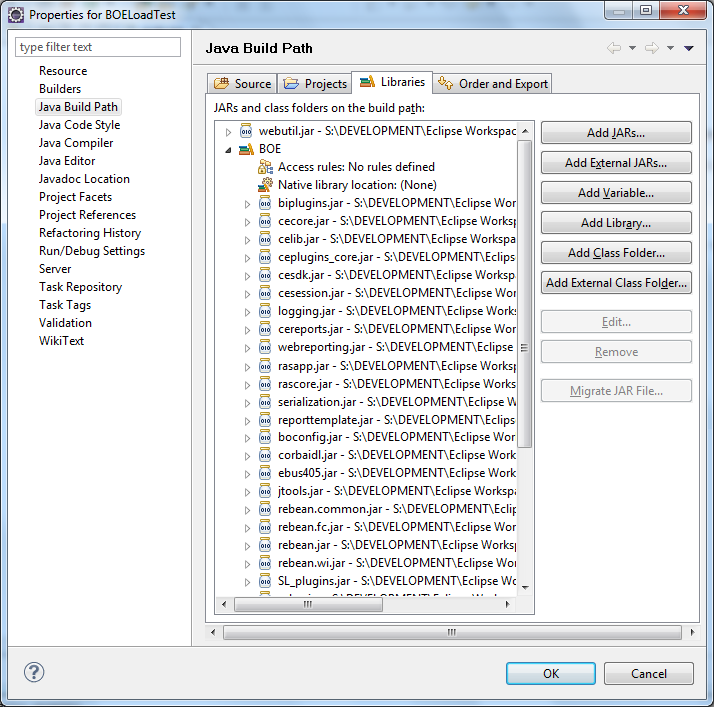
- Click add JARs and select the following JARs from the BOE java library folder [BOE_INSTALL]common4.0javalib and click OK
biplugins.jar
boconfig.jar
cdzlet.jar
cecore.jar
celib.jar
ceplugins_core.jar
cereports.jar
cesdk.jar
cesession.jar
corbaidl.jar
ebus405.jar
jtools.jar
logging.jar
rasapp.jar
rascore.jar
rebean.common.jar
rebean.fc.jar
rebean.wi.jar
reporttemplate.jar
serialization.jar
SL_plugins.jar
webreporting.jar
wilog.jar
xalan.jar
xercesImpl.jar
xml-apis.jar
xpp3.jar
Note, the last 4 are found in the subfolder ‘external’ of the BOE library folder.
- Once added the Java Build Path should look like this.
- Click OK to close the dialog
If you expand Java Resources in the project explorer you’ll see the JAR files you’ve added. You’ll also see many other JAR files and these are JAR files that the original files we added depend on.
Note on BOE SDK Libraries
The set of libraries listed above are all the libraries required for accessing BusinessObjects Enterprise and viewing Web Intelligence Reports and Crystal Reports. Refer to the BusinessObjects Developer Guider which can be found at the SAP BusinessObjects community for full details.
Allowing Tomcat to Compile JSPs that use the BOE SDK
This is enough to allow us to write java classes such as Servlets. When we request Eclipse to compile a Java class that uses BOE SDK Eclipse knows how to reference the BOE SDK libraries and so it can compile the classes successfully. However when we write a JSP that uses BOE SDK then it is Tomcat that will compile the JSP and so we need to make sure that Tomcat can also reference the BOE SDK libraries. To do this we can instruct Eclipse to include the BOE SDK JAR files when compiling the web application and it does this by including them in the lib folder under WEB-INF.
To add the JAR files to the web application lib folder,
- Right Click over the project in the project explorer and select Properties.
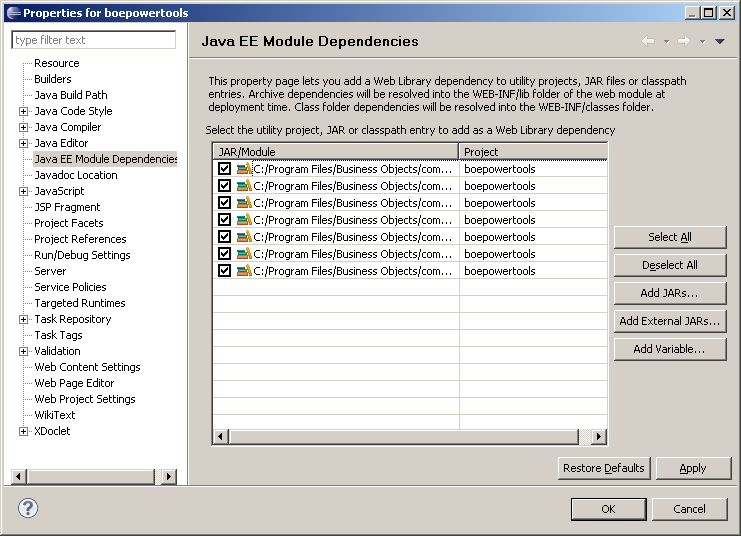
- Select Java EE Module Dependencies in the left hand menu.
- The JAR files we added should be listed in the window. Click Select All to select all the JAR files and click Apply.
- Once done click OK to close the dialog.
In later versions of Eclipse (Eclipse Helios and later) the steps are slightly different,
- Select Deployment Assembly from the left hand menu and click Add button
- Select Java Build Path Entries, Next and select the BOE user library
- Click OK
That’s all the configuration required and we can now start developing web applications that use the BOE SDK. To ensure that all is working as expected we’ll next create a simple BOE logon / logoff application.
Creating a Simple BOE Logon Application
Here we’ll create a simple application that allows a user to logon to BusinessObjects Enterprise and then logoff again. The application will first display a logon screen where the user can enter the BOE server name, a username and a password. When they click logon the data is submitted to a JSP which will use this data to logon to BOE, display a success or failure message and a button to logout.
First let us create the logon form,
- Right click over the project explorer and select New > HTML Page.
- Name it “loginForm” and select your preferred template
You can edit the page using a plain text editor or using a visual editor. To open an editor right click over loginForm.html in the project explorer and select Open With and then select your preferred editor. You can also preview the page using Open With Web Browser.
- Edit the web page and add the following login form,
<form action="login.jsp">
  Server: <input name="CMS" type="text" />
  Username: <input name="username" type="text" />
  Password: <input name="password" type="text" />
  <input type="submit" value="Logon" />
</form>
Next we’ll create login.jsp that will receive the values from this form
- Right click over the project explorer and select new JSP page.
First we’ll check we’re receiving the param values correctly.
- Add the following code within the body tags
<%
  String sServer = request.getParameter("CMS");
  String sUsername = request.getParameter("username");
  String sPassword = request.getParameter("password");
%>
CMS: <%= sServer %>
Username: <%= sUsername %>
Password: <%= sPassword %>
- To test that this is working, select loginForm.html and click the run icon.
The server should start if it is not already running and the login form should be displayed. Enter some values and click login. Your entered values should be displayed in the next screen. Now we’ll update login JSP to use these values to login to BOE. First start your BOE server if it is not already running
- Add the following import page directives right at the beginning of the JSP
<%@ page import="com.crystaldecisions.sdk.framework.*" %>
<%@ page import="com.businessobjects.foundation.exception.*" %>
<%@ page import="com.crystaldecisions.sdk.exception.*" %>
- Now return to your code in the body tag and update it to look like the following,
<%
  String sServer = request.getParameter("CMS");
  String sUsername = request.getParameter("username");
  String sPassword = request.getParameter("password");
  String sSuccessFailMsg = "{empty}";
  //login to BOE
  IEnterpriseSession eSession = null;
  try {
    final ISessionMgr sessionMgr = CrystalEnterprise.getSessionMgr();
    eSession = sessionMgr.logon(sUsername, sPassword, sServer, "secEnterprise");
    sSuccessFailMsg = "You have successfully logged on! BOE version: " + eSession.getEnterpriseVersion();
  } catch (SDKException e) {
    sSuccessFailMsg = "Logon error: " + e.getMessage();
  } catch (Exception e) {
    sSuccessFailMsg = "Logon error: " + e.getMessage();
  }
%>

<%= sSuccessFailMsg %>
- Save this and test the code by executing the logon form. Note, when testing don’t use Administrator account in case you inadvertently disable it, ideally create a test user account. A successful logon should display:
You have successfully logged on! BOE version: 1210
or an error if you have entered an incorrect username and password:
Logon error: Enterprise authentication could not log you on.
Please make sure your logon information is correct. (FWB 00008)
or if the server name is wrong or the BOE server is not running or not accessible a message,
Logon error: Server DEV_BOE not found or server may be down (FWM 01003)
To finish off we’ll update the application by adding a logout mechanism.
- Return to login.jsp and add the following code highlghted in bold within the try statement
try {
  final ISessionMgr sessionMgr = CrystalEnterprise.getSessionMgr();
  eSession = sessionMgr.logon(sUsername, sPassword, sServer, "secEnterprise");
  sSuccessFailMsg = "You have successfully logged on! BOE version: " + eSession.getEnterpriseVersion();

//Store BOE session object in web app session to retrieve later
  session.setAttribute("EnterpriseSession", eSession);
}
- Also add the following which will display a logout button below the success message,
<form action="logout.jsp"><input type="submit" value="Logout" /></form>
- Now add a new JSP called logout.jsp and right click over Web Content in project folder and select New > JSP
- Add the following page directive,
<%@ page import="com.crystaldecisions.sdk.framework.IEnterpriseSession" %>
- And add the following code to the body,
<%
//Retrieve the BOE Session object
IEnterpriseSession eSession = (IEnterpriseSession) session.getAttribute("EnterpriseSession");

//close session
session.removeAttribute("EnterpriseSession");
if (eSession != null)  {
  eSession.logoff();
  eSession = null;
  session.invalidate(); }
%>

<p>You have now logged out.
Click <a href="loginForm.html">here</a> to login again.</p>
- Test the application in the same way and you should now be able to logout and login again.
Packaging Application in a WAR file
Once we’ve built our application we can package it in a WAR file to be deployed on another platform. This is exactly same as we did in part 1:
- Right click on the project and select Export > WAR file
- Update the name or keep default and enter a Destination for where the WAR file will be created
- Click Finish and your WAR file is generated.
This WAR file contains all our code plus the BOE SDK JAR files we added to our project at the beginning of the article. This means that we only need to deploy the WAR file on our target platform and don’t need to install any further BusinessObjects Enterprise software.
Integrating Java Doc for the BOE SDK
It is useful to have java doc integrated within Eclipse so that you can easily refer to the documentation while coding. First we need to download the doc from SAP BusinessObjects and then integrate into Eclipse.
To download the BOE SDK Documentation,
- Goto the SAP BOE Community website at http://www.sdn.sap.com/irj/boc
- And from there select the link to SDK Library
- Here we can see various packages, download the packages your require, for example, the XI 3.1 BOE Administration API can be downloaded from http://help.sap.com/businessobject/product_guides/boexir31/en/boesdk_java_apiRef_12_en.zip
- Save the ZIP to a suitable location and extract the contents
To integrate the documentation in Eclipse,
- Return to Eclipse
- Under your project expand Java Resources folder and then expand Libraries
- For each of the BOE JAR files we added
biplugins.jar
cecore.jar
celib.jar
ceplugins_core.jar
cesdk.jar
logging.jar
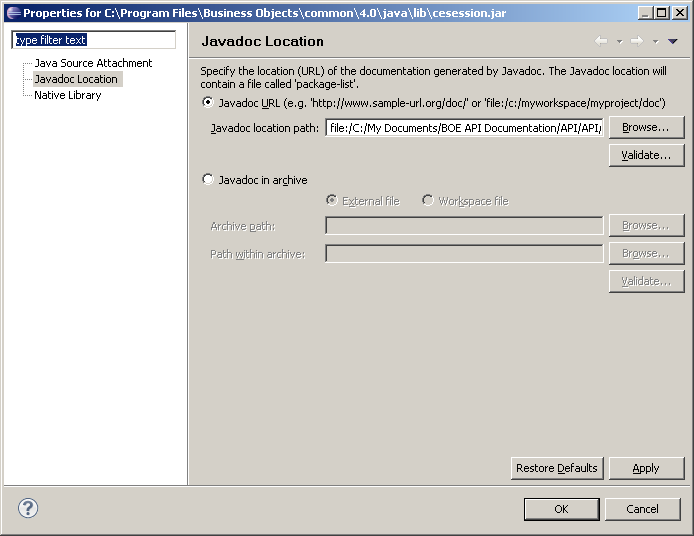
- Right click over the jar file and select properties in the left hand menu select JavaDoc location.
- Click the Browse button and select the folder we contains the contents of the package we expanded above, should be the path ending in the folder “boesdk_java_apiRef_12_en”
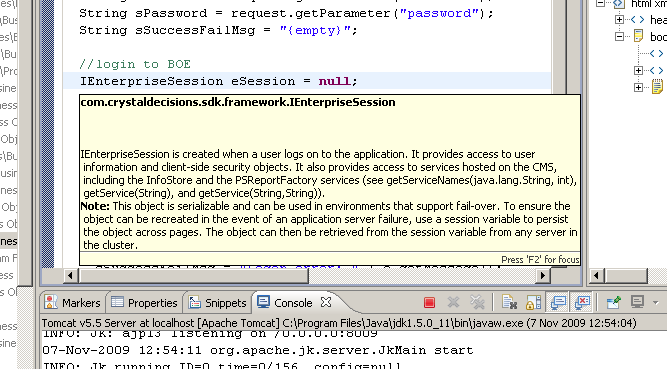
- Now when viewing code in a JSP or any other java class we can hover over a BOE class or object and help will pop-up display the text from the BOE SDK documentation.
That brings us to the end of this article and I hope you found it informative and that you have enjoyable and productive time coding BOE Web applications using Eclipse.

 Al Gulland
Note, javadoc for XI3.1 can be viewed or downloaded from this location: http://help.sap.com/javadocs/#sapbobj
LikeLike
Great Article! I’ve tried to deploy the war to:
C:…BusinessObjects Enterprise 12.0javaapplications
Also restarted BO but always get 404 error.
Some ideas where something has to be configured?
LikeLike
The war file should be deployed to your web application server, for example for Tomcat you would put the WAR file in the ‘webapps’ folder below where you installed Tomcat.
LikeLike
Hallo,
Thx a lot for your feedback. Your article is realy brilliant.
Just on more question: Can this be also a standaloe tomact on a seperate server or must this be the tomcat where business objects is installed in?
Thx a lot, Willi
LikeLike
A separate server is fine – and something you see quite often. The BOE doc says you need to “install” the java components however I’ve found you just need to BOE jars in your web app or on your classpath
LikeLike
Thx a lot for your help.
I got it to run successfuly on a Oracle Fusion Middleware (WebLogic Server).
LikeLike
no problem. I’m glad you found the article helpful and you got your app working
regards
AL
LikeLike
Great article. Please Note.
In the latest Eclipse Helios (3.6), the “Java EE Module Dependencies” is replaced by “Web Deployment Assembly“
LikeLike
Hi ,
our server is in solaris, and can i create as java sdk war file in windows and deploye it into tomcat>webapp folder in solaris.
or do i need to create a war file in solaris only to be deployed into tomacat solaris env.
please advice.
thanks
kris
LikeLike
yes, this should be OK as long as you properly manage items that differ between Windows and Solaris such as file path names etc.
regards
AL
LikeLike
funtastic article …………
A perfect one thanks alot
LikeLike
Very well done…
Thanks a lot.
LikeLike
Click add JARs and select the following JARs from the BOE java library folder [BOE_INSTALL]common4.0javalib and click OK – See more at: http://www.gulland.com/wp/?p=32#sthash.w9dxQHze.dpuf
I am stuck at this part. I cannot find a directory that matches this, or files that match those listed. I have Tomcat 5.5 installed and I am using Eclipse Helios Service Release 1. Sorry if I sound like a newbie, but I really am not sure what I have done wrong. Any assistance would be appreciated!
LikeLike
Is your BusinessObjects installed on a remote server? If so then you will need to copy the listed JAR files from that server to your desktop.
LikeLike
“Is your BusinessObjects installed on a remote server?”
I am not sure how to determine this. I’ve looked online, but I can’t find a clear description of a line I should look for in my server’s XML file to tell me if BO is installed on Tomcat. Is this something I can find out or configure in Eclipse?
Thanks again for the fast reply!
LikeLike
Prior to doing any SAP BusinessObjects SDK development you’ll need to have a deployment of BusinessObjects, either installed locally or installed on a server somewhere in your organisation.
I’m assuming you haven’t installed locally otherwise you would have located the JAR files in the given folder. So do you have BusinessObjects installed on a server in your organisation? And do you know the administrator of the system? They should be able to help you locate these JAR files.
AL
LikeLike
I guess that could be a problem. Even the TRIAL version wants to know what company I work for and what industry I’m in. Unfortunately, I am currently unemployed and trying to learn this stuff to improve my chances of finding employment in the IT field.
Thanks for the first lesson though. It helped me get my feet wet, so I’ll just have to see what I can learn on my own from here!
– Adam
LikeLike
SAP BusinessObjects SDK is quite a niche skill and I don’t think there’s a huge demand in the market place. Knowing BusinessObjects on its own is a good skill to have or maybe SAP DataServices.
LikeLike